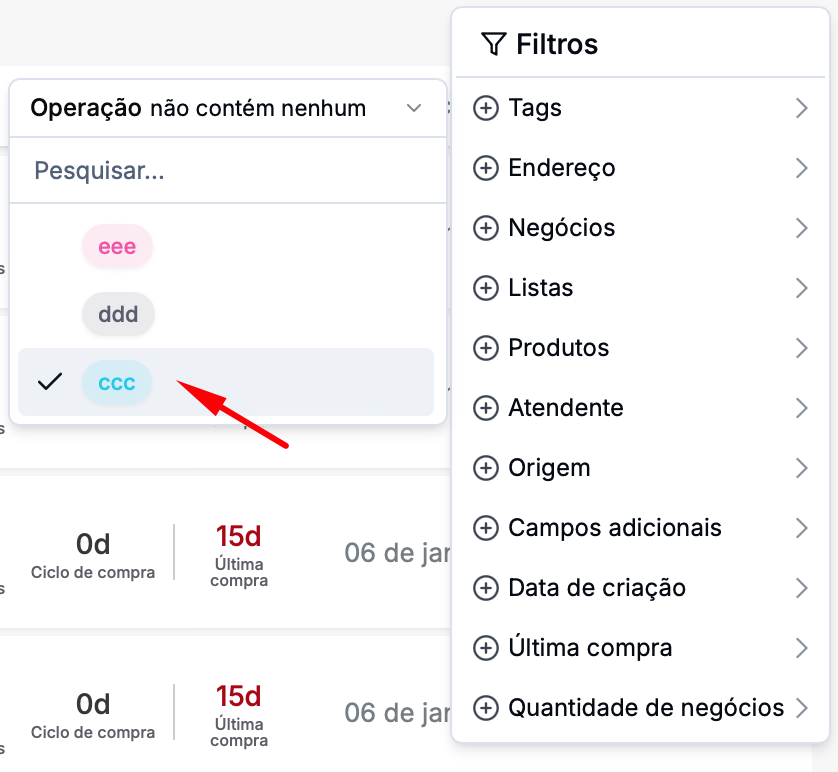
This feature lets you find leads that match one or more conditions. You can apply several filters at the same time. If you export leads while the filters are active, only the filtered leads will be exported.
Step 1: Go to the Leads section
In the left side menu, click on the Leads option.
You'll be taken to the list of existing Leads
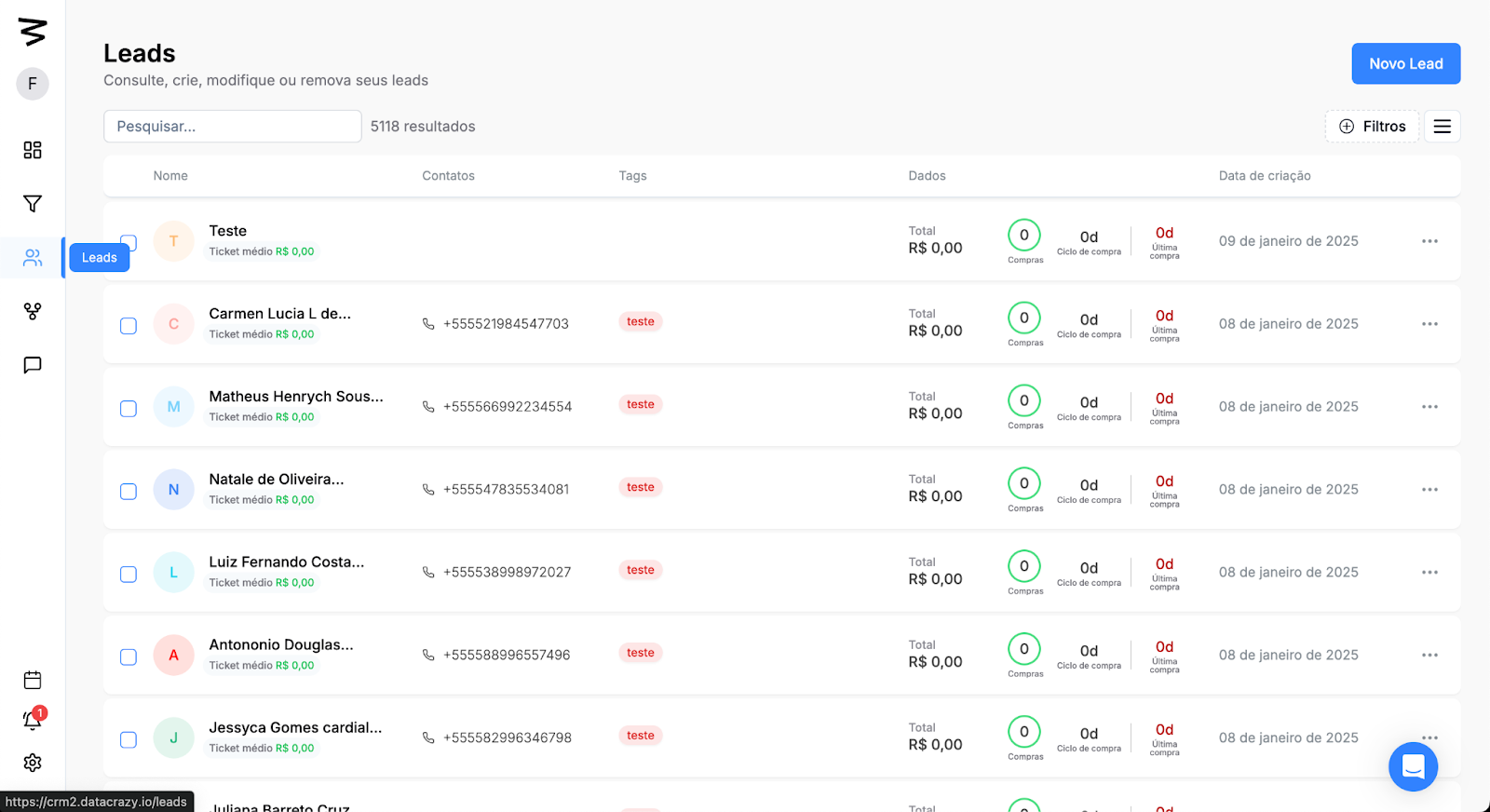
Step 2: Opening the filters menu
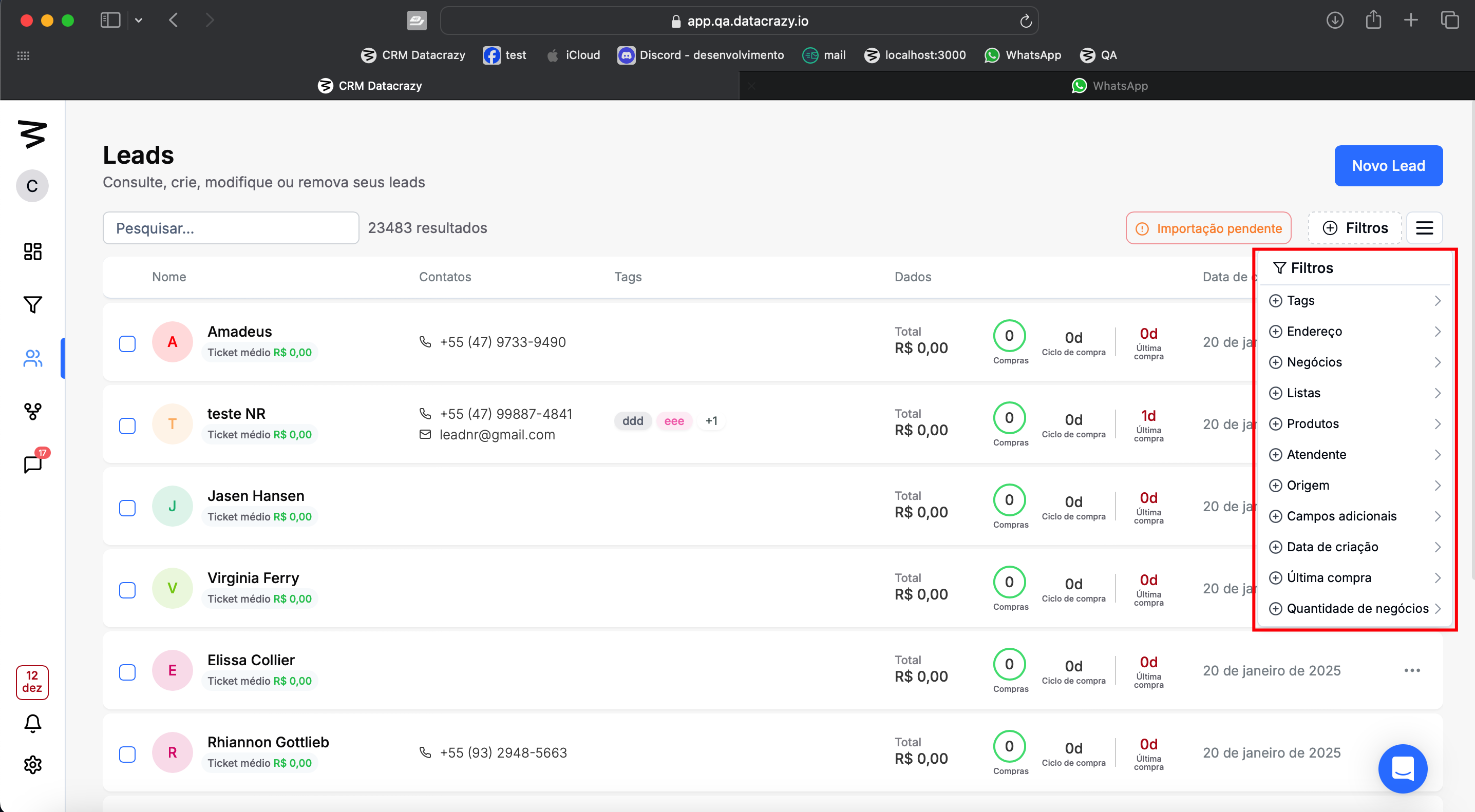
In the top right corner, click on the Filters option.
The available filter options are:
Tags
Address
Deals
Lists
Products
Agent
Source
Additional fields
Creation date
Last purchase
Number of deals
Step 3: Applying filters
To apply a filter you have to click on the option you want and select or type what you want to filter.
In particular, the filters for Tags, Deals, Lists, Products, and Agent have operation options like:
Contains some of the selected options;
Contains all the selected options;
Does not contain any of the selected options;
You can combine multiple operations in the same filter, and with other filters, whether they have operations or not.
Step 4: Viewing and removing filters
Viewing
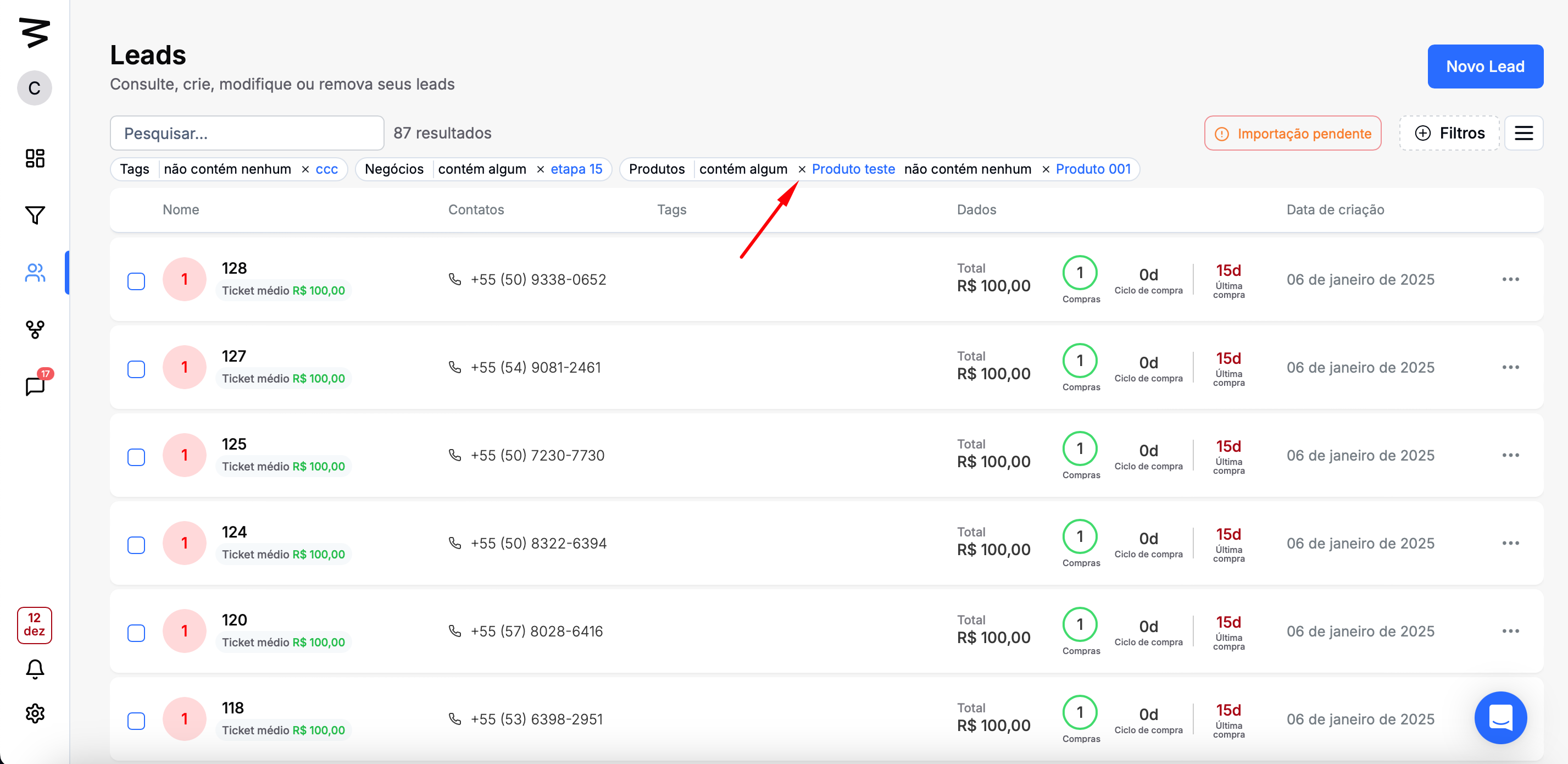
The filters applied on the Leads screen show up below the search bar:
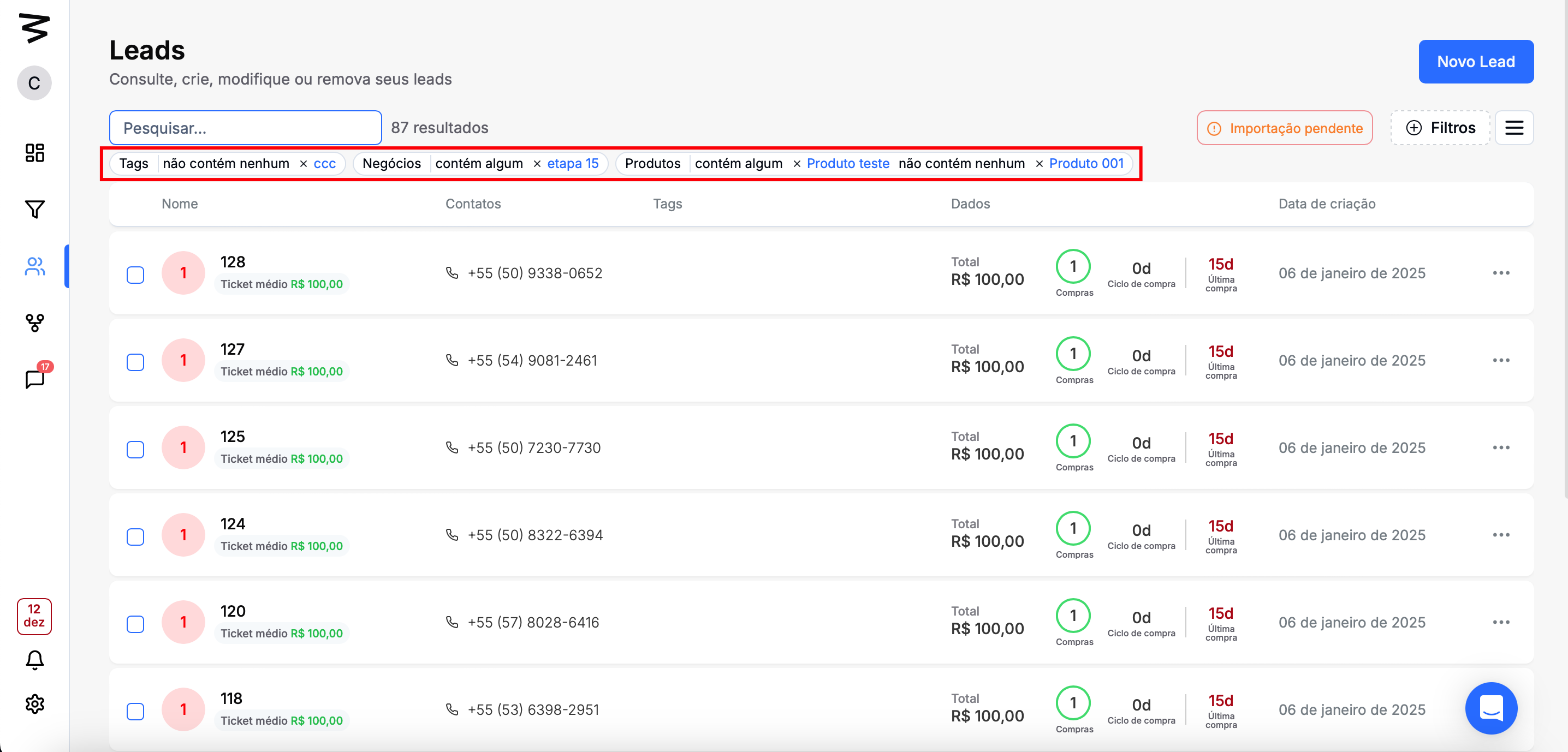
Removal
You can remove filters in two ways, one way is to click the "x" for the applied filter:
The second way is to open the filters menu and click the filter that is selected, and it will be removed: