Log in to CRM Data Crazy with your access credentials.
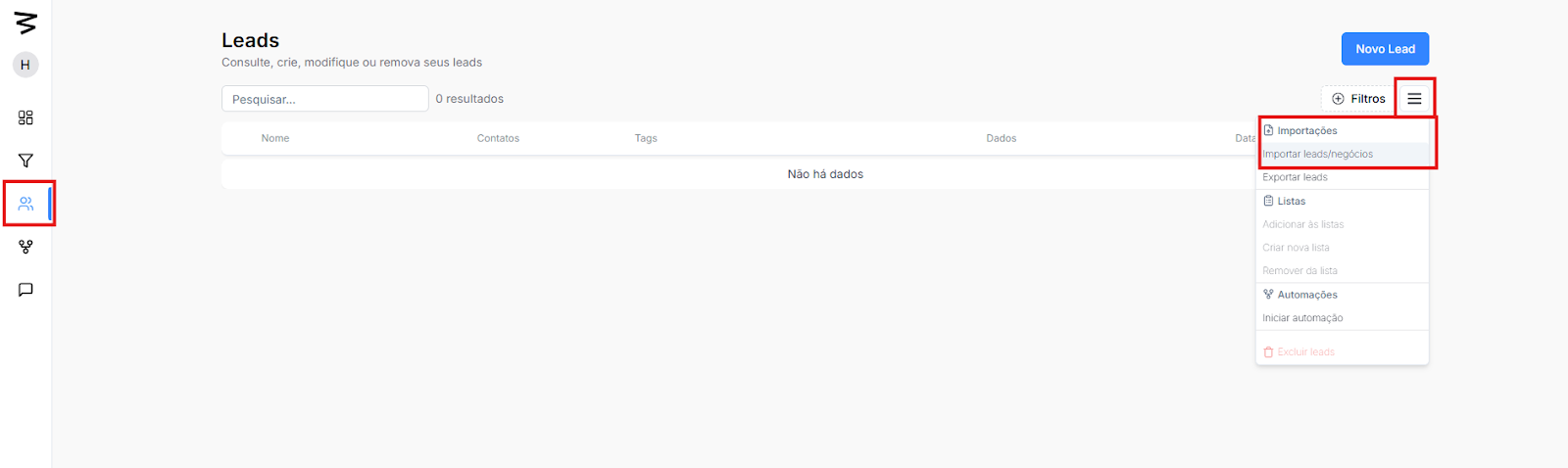
In the main menu, locate and click on the "Leads" option and click on the 3 bars to open the option to import leads/deals.
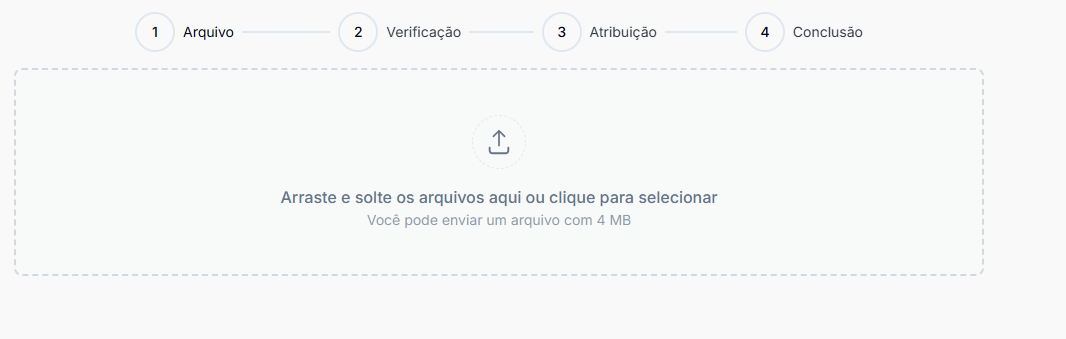
Drag and drop the desired file or click to select the file directly from your device.
The file can be up to 4 MB.
On the next screen, the system will ask you to map the columns of your file to the CRM fields. We don't have a base template for this import. The CRM lets you map the fields in a customized way, but we have essential mapping fields
Examples of fields: Name, Email, Phone Number,
Confirm that all relevant columns are assigned correctly.
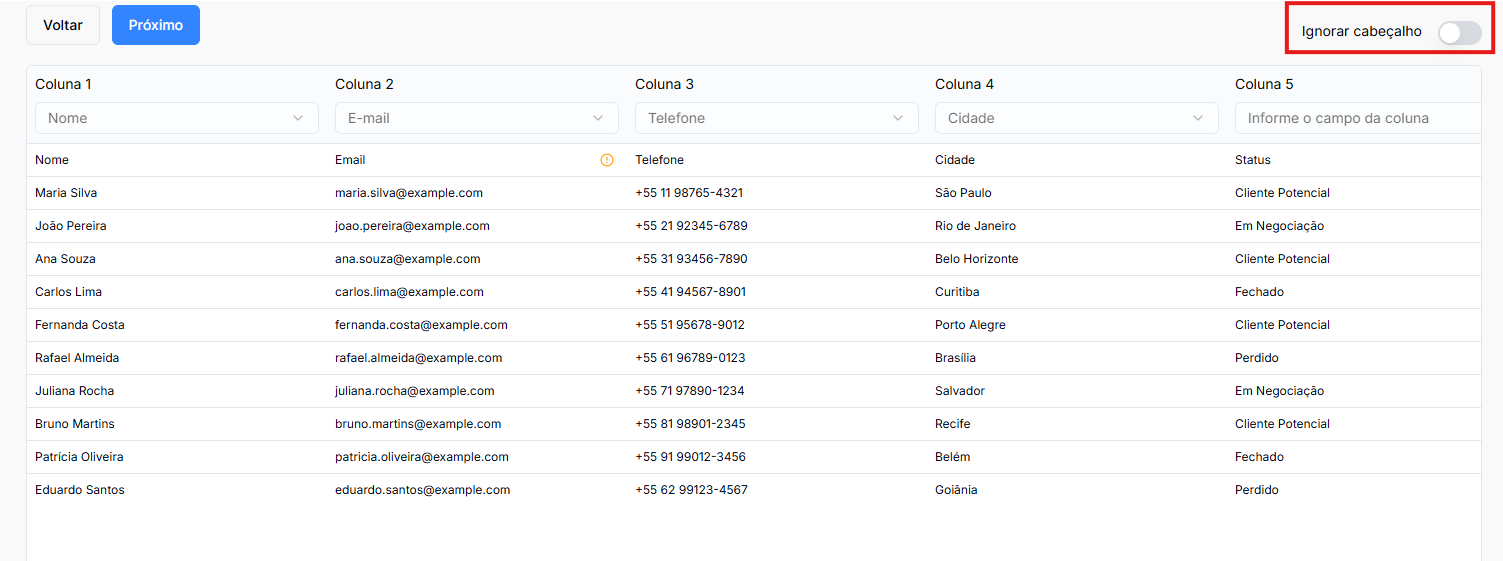
(Click ignore header to remove the guide that comes in the imported document)
Add extra information to better organize your leads:
Tags: To categorize your leads.
Products: Associate products, if necessary.
Pipeline: Define which pipeline the leads will be included in.
Phone DDI: Enter the international code (e.g.: 55 for Brazil)
Click "Next" to proceed.
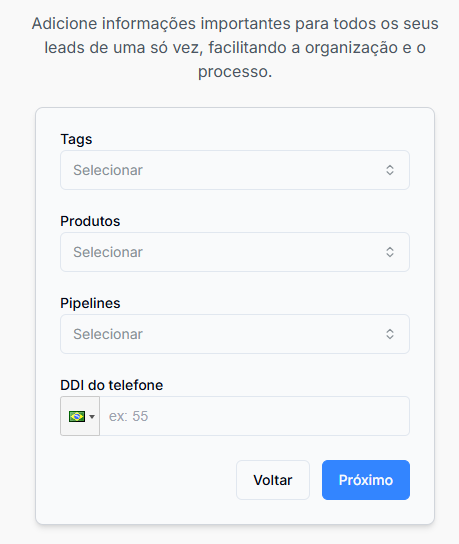
(To add tags and products to leads, you must create the tag and product in advance that will be used)
Review all information on the general review screen.
Make sure the data is correct and complete.
Click "Complete Import" to finish the process.
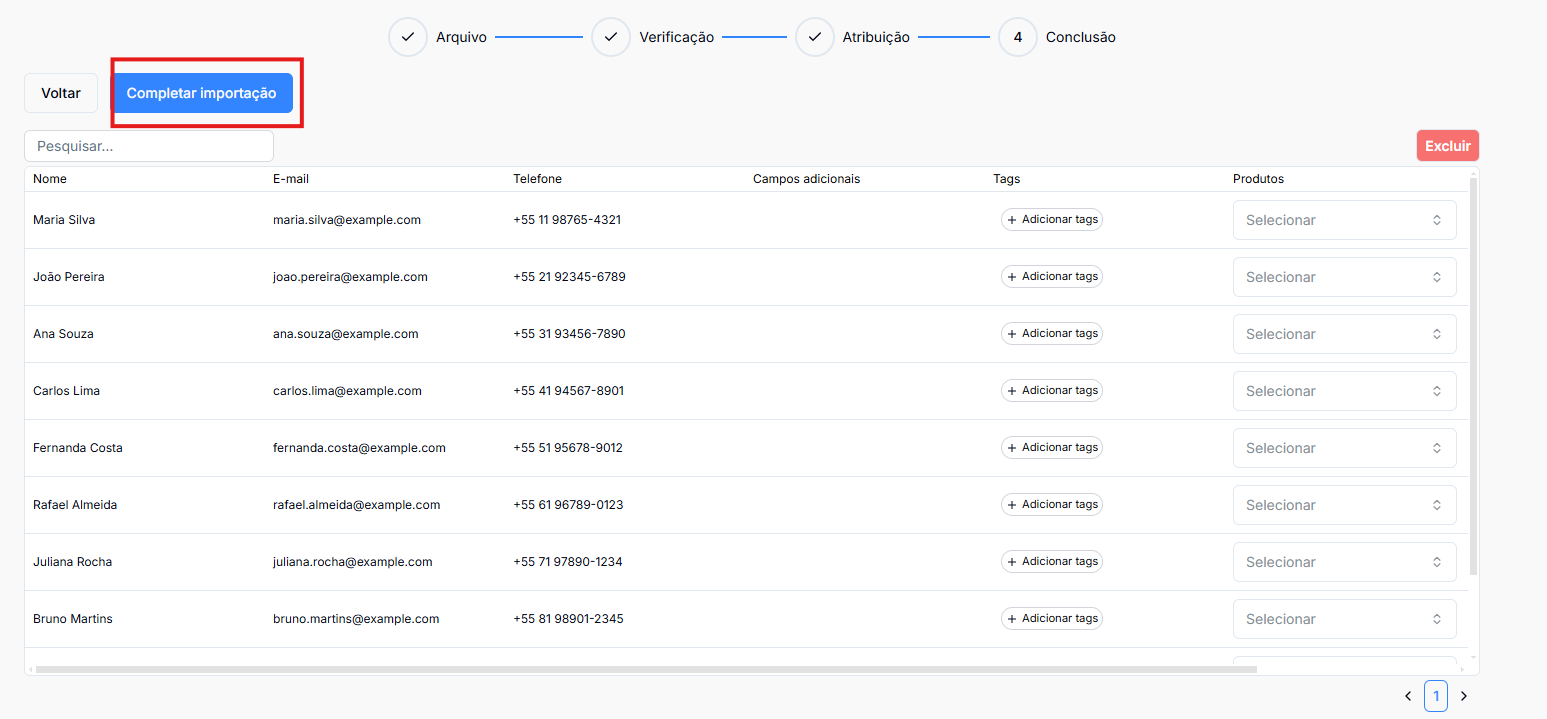
Make sure all required fields are filled in correctly.
Customize your spreadsheet as needed for better data organization.
Keep a backup copy of the original spreadsheet before performing the import.
If you have any questions, contact CRM Data Crazy support.
Done! Your leads have been successfully imported and are ready to be managed in the CRM.
