The error chat.errors.whatsapp-cloud-error.error-code-130497 in the WhatsApp Cloud API often indicates that the business account (WABA) has restrictions on sending messages.
A common cause for this block is the lack of complete address and profile information in Business Manager (BM), in the WABA (WhatsApp Business Account), or in the linked Facebook Page.
Why does this happen?
Location restrictions: Meta restricts sending messages to certain countries if the company profile is not transparent or is incomplete.
Anti-abuse: The lack of basic data makes Meta's security system classify the company as "high risk" or potential spam.
How to fix it (step by step)
Be consistent with the information across BM/WABA/Facebook Page/Instagram
Update the Business Manager (BM): Go to Business Settings > Business Information and fill in all fields, especially physical address, phone, and website. See image 2A and 1A.
Check the WABA and fill in all data and address: On the main screen of the business manager, in WhatsApp accounts, you’ll see your WABA (WhatsApp Business Account), select it, go to phone number, tap it and fill in all the information. The more complete, the better. See image 2A, 2B and 2C.
Facebook Page: Go to your Facebook page, switch to the view as page admin (profile view can’t change information). To switch views, tap the profile icon at the top of the screen and choose the “profile” with your page’s name! See image 3A and 3B. Now make sure that your company’s Facebook page also has the full address correctly filled in.
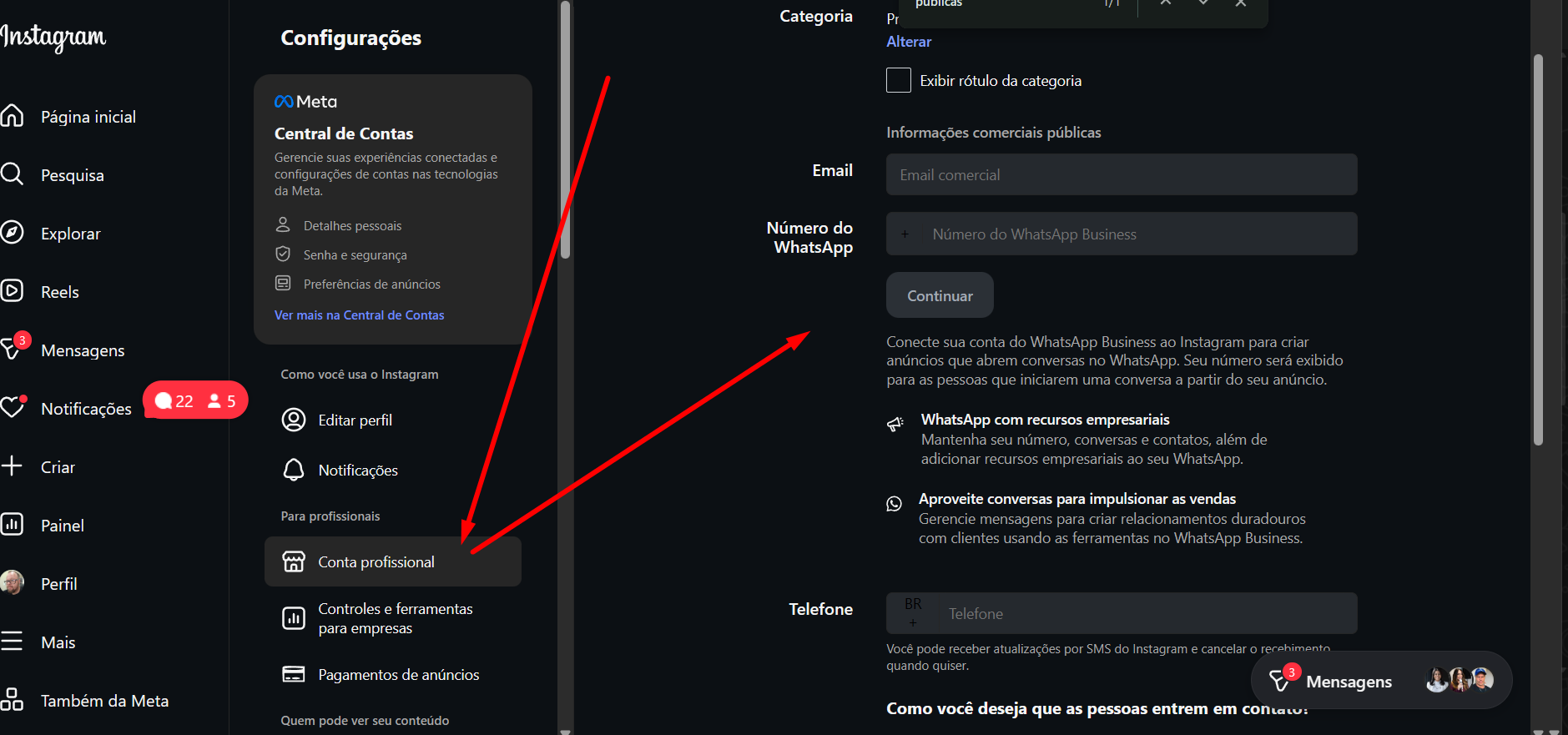
Go to your Instagram and complete it with the proper information. See image 4A and 4B.
Company Verification: If possible, start the company verification process in Meta Business Manager. See image 1A - In the section Business verification status
It’s not immediate, it can take many hours (half a day or even more), however the error 130497 usually stays in the past after this procedure.
In the future, create your accounts already with as much information as possible and keep the information consistent across linked accounts to avoid this headache.
See Image 2A to access the business manager, then see image 1A to go to the data change screen of the BM.
Image 1A - BM Information (Portfolio)
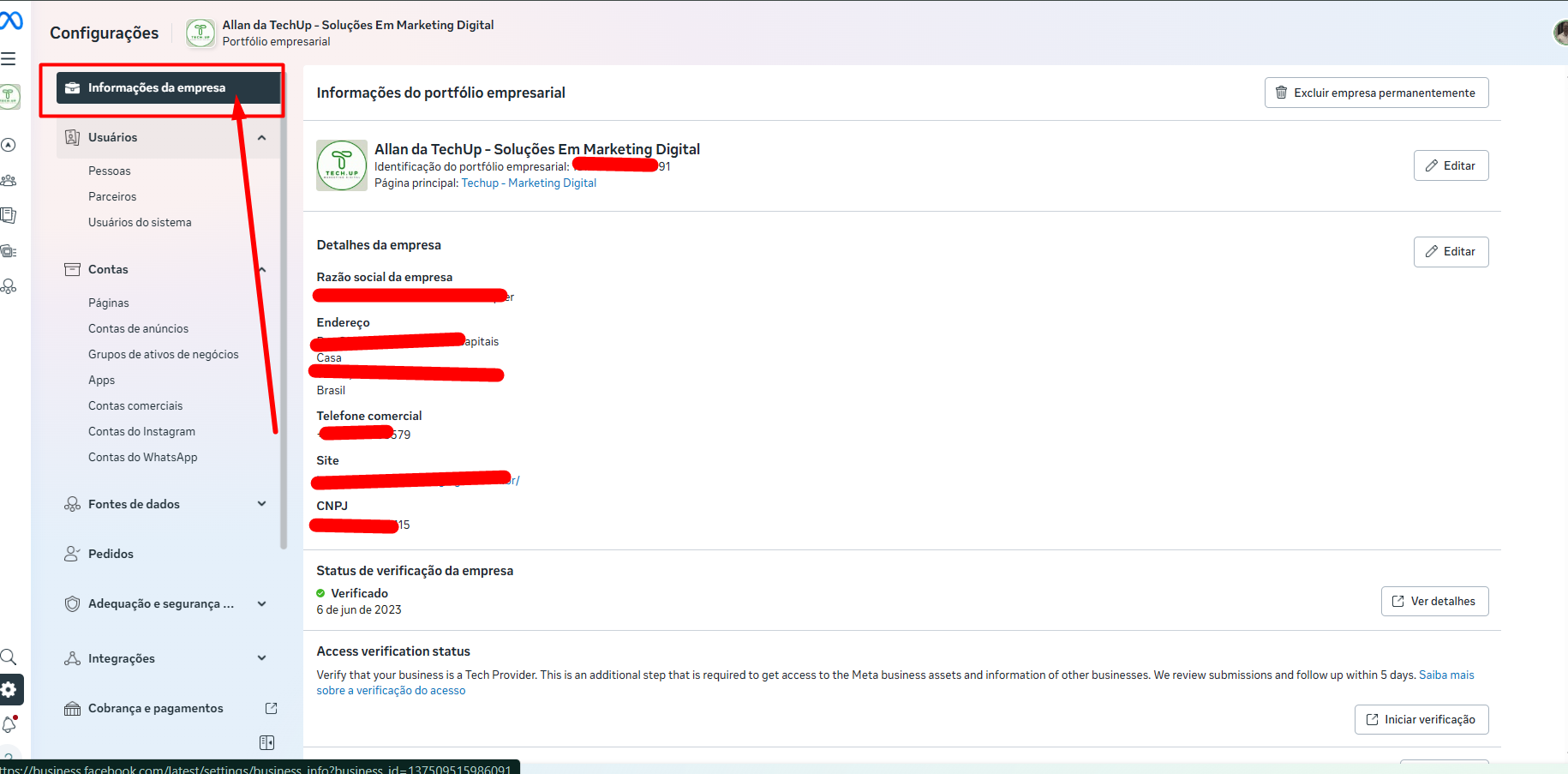
Image 2A - Accessing the business manager
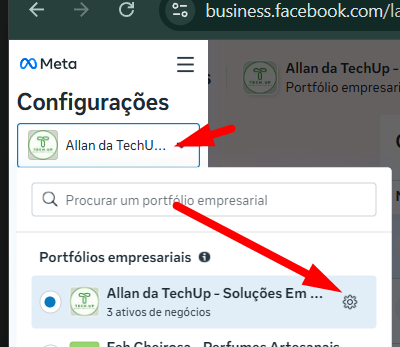
Image 2B - Whatsapp Accounts → Select the Waba → Tap on Phone Numbers → tap on the number
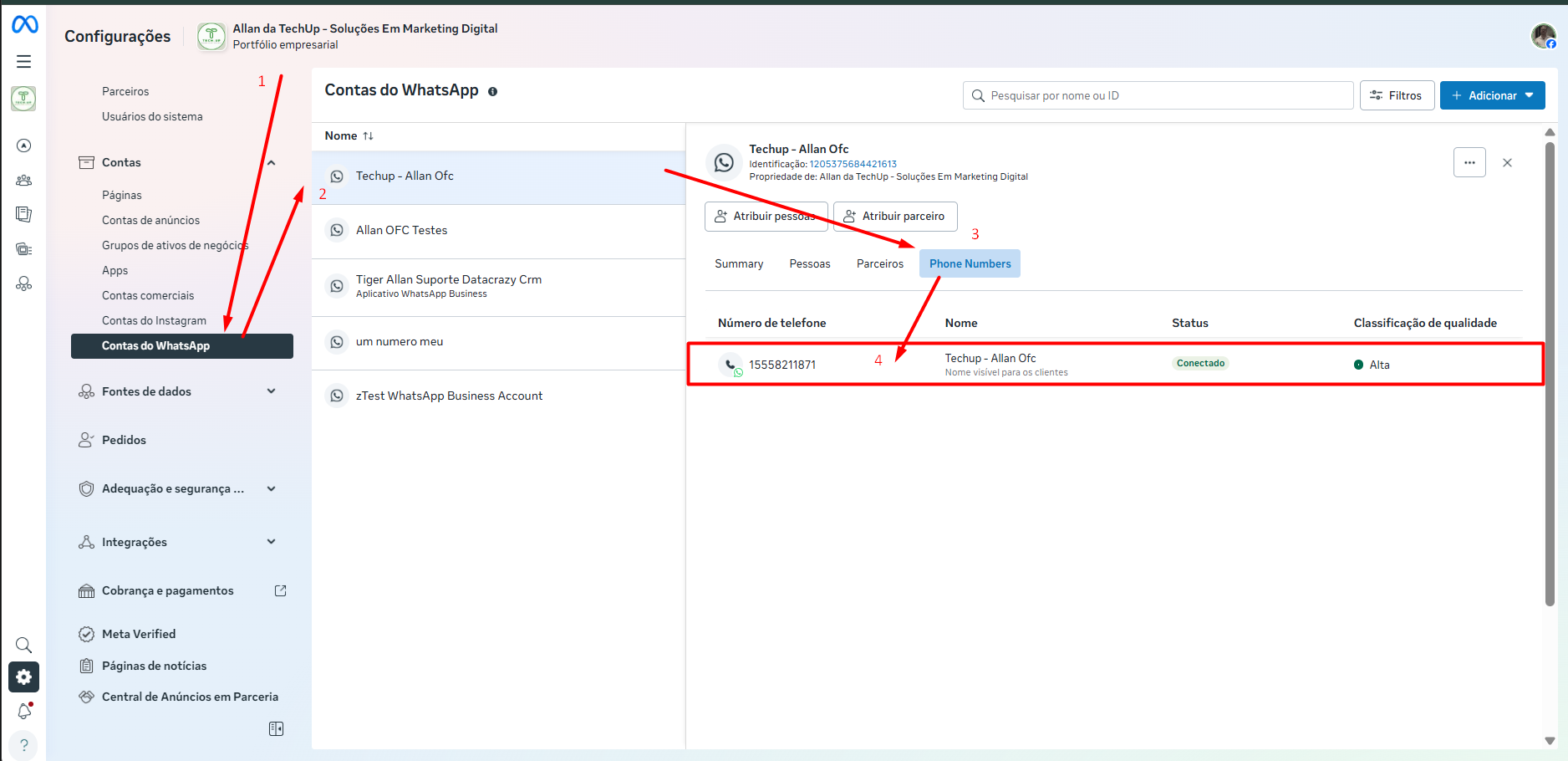
Image 2C - In the modal that opened, fill in all the information. Repeat for each number if there are other numbers in this WABA.
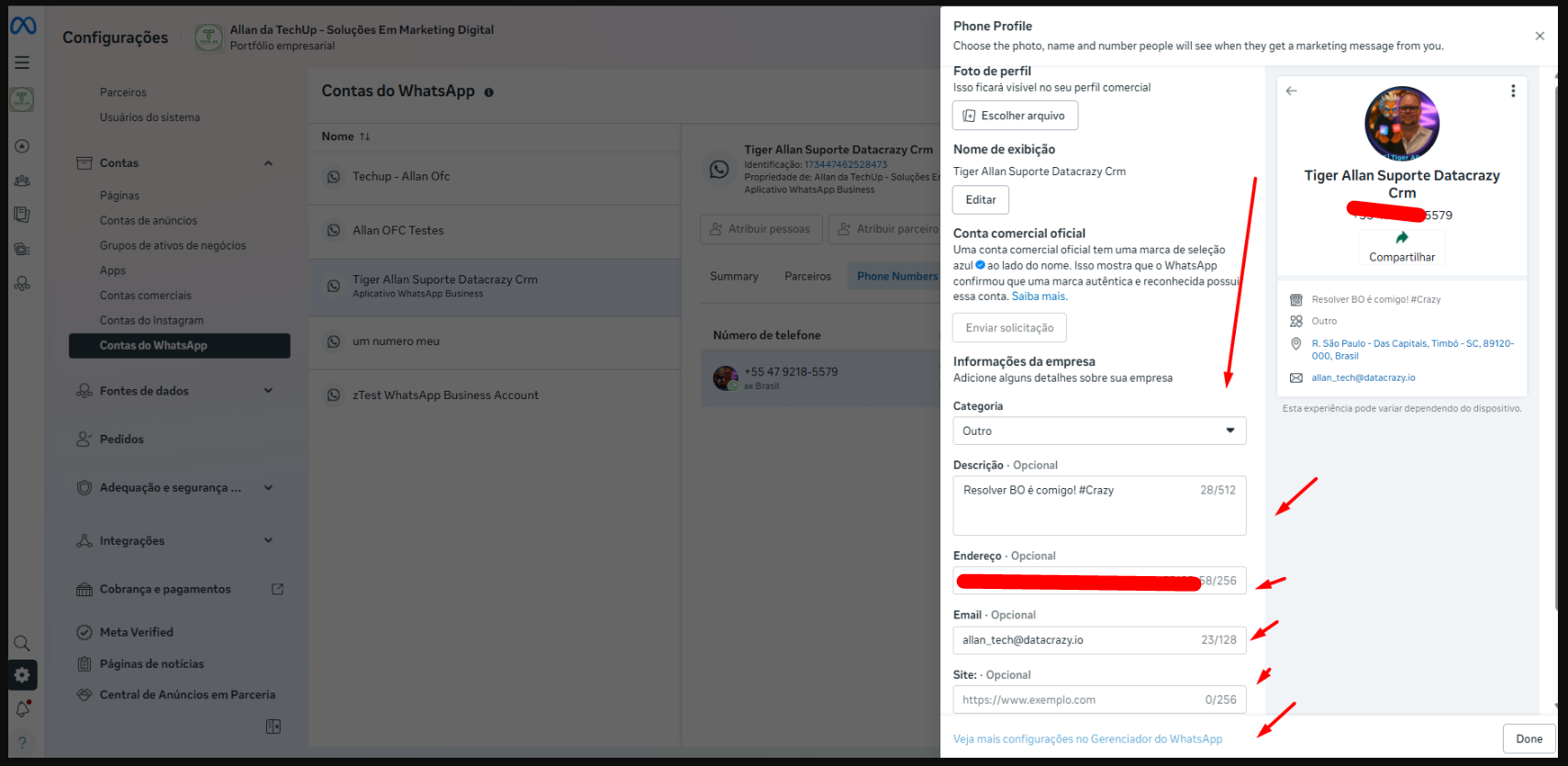
Image 3A - Access your page → Now we’re going to switch the view to the Page Admin view.
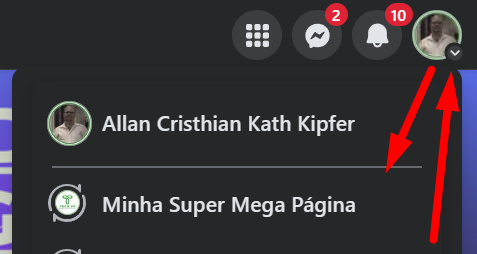
Image 3B - Edit Details to add more information.
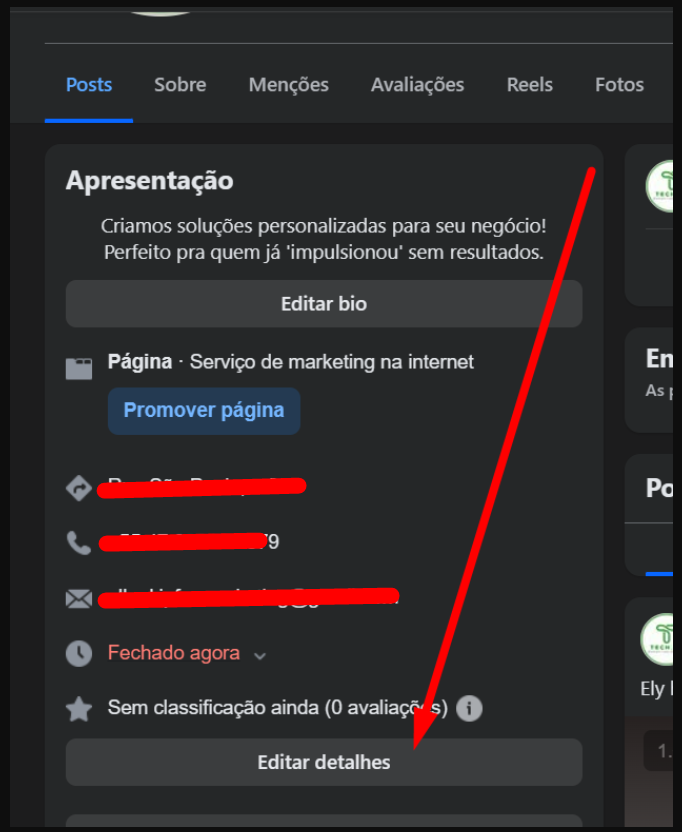
Image 4A - Open your instagram → Tap on profile → Edit Profile
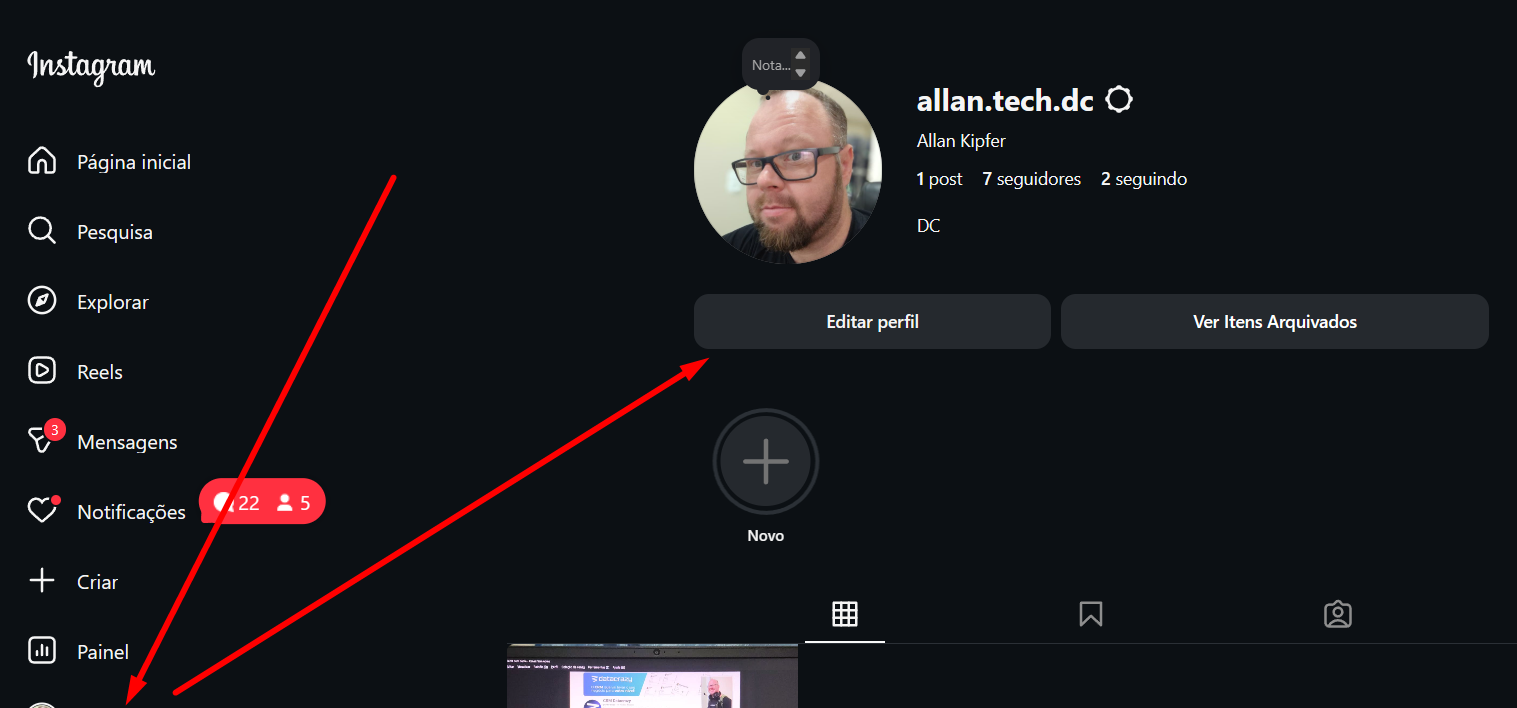
Image 4B - Tap on Professional account → Now fill in the information. When you’re done, tap further down on the send button.