When we change the display name, sometimes it may ask you to REGISTER the phone number again.
For this we won’t CREATE or DELETE connections.
Method #1: We’ll reconfigure an existing one!
We can do this in two ways, the simplest is via CRM Datacrazy, in connections, by clicking manage on the connection that matches the one indicated by this message in META, and redoing the connection via Facebook login, meaning you just repeat the steps already done for this same connection.
If this doesn’t solve it, we need to make an API call in META known as /register.
Method #2: /register
When you make a registration request, we’ll check how many requests of this type you’ve made for the phone number in the last 72 hours. If you’ve already made ten requests, the API will return the error code 133016, and it won’t be possible to register the number in the following 72 hours.
For this we first need, above all, to gather some information.
You need to have on hand:
Phone number ID (phoneNumberId)
Connection TOKEN (Via F12/Inspect → Network, we’ll cover this further below)
To find this data go to the Instances page in the CRM.
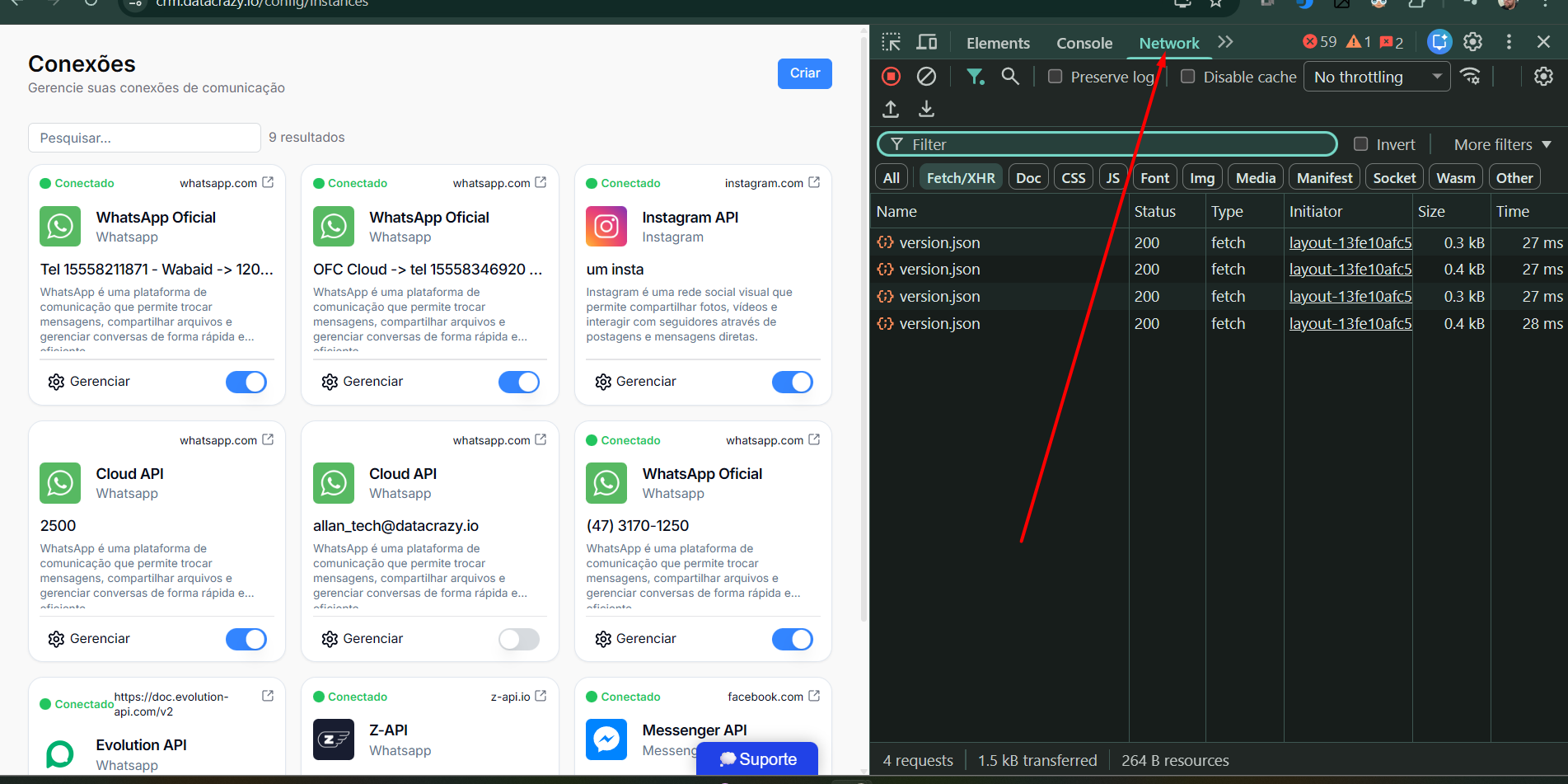
On the instances screen, press the F12 key if you’re using Windows, or for MacOS, right-click and click on inspect. Go to the NETWORK tab. Check Image 1A and 1B
Image 1A
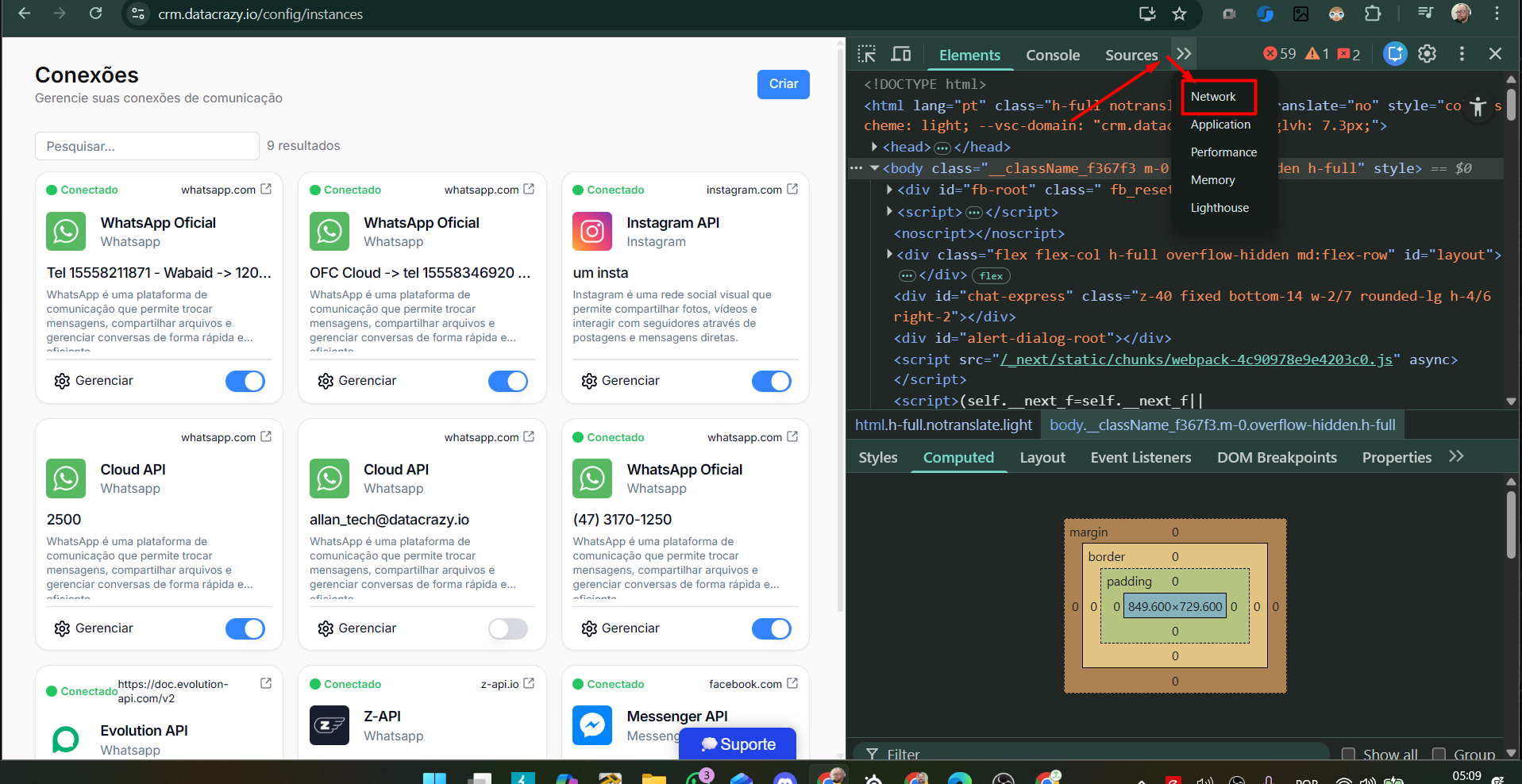
Image 1B
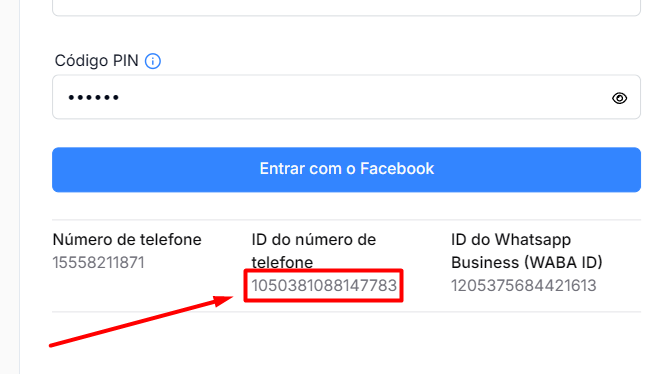
In the connection of your problematic number, click on manage, the phone number id will appear, save it in a safe place. See Image 2A.
Image 2A
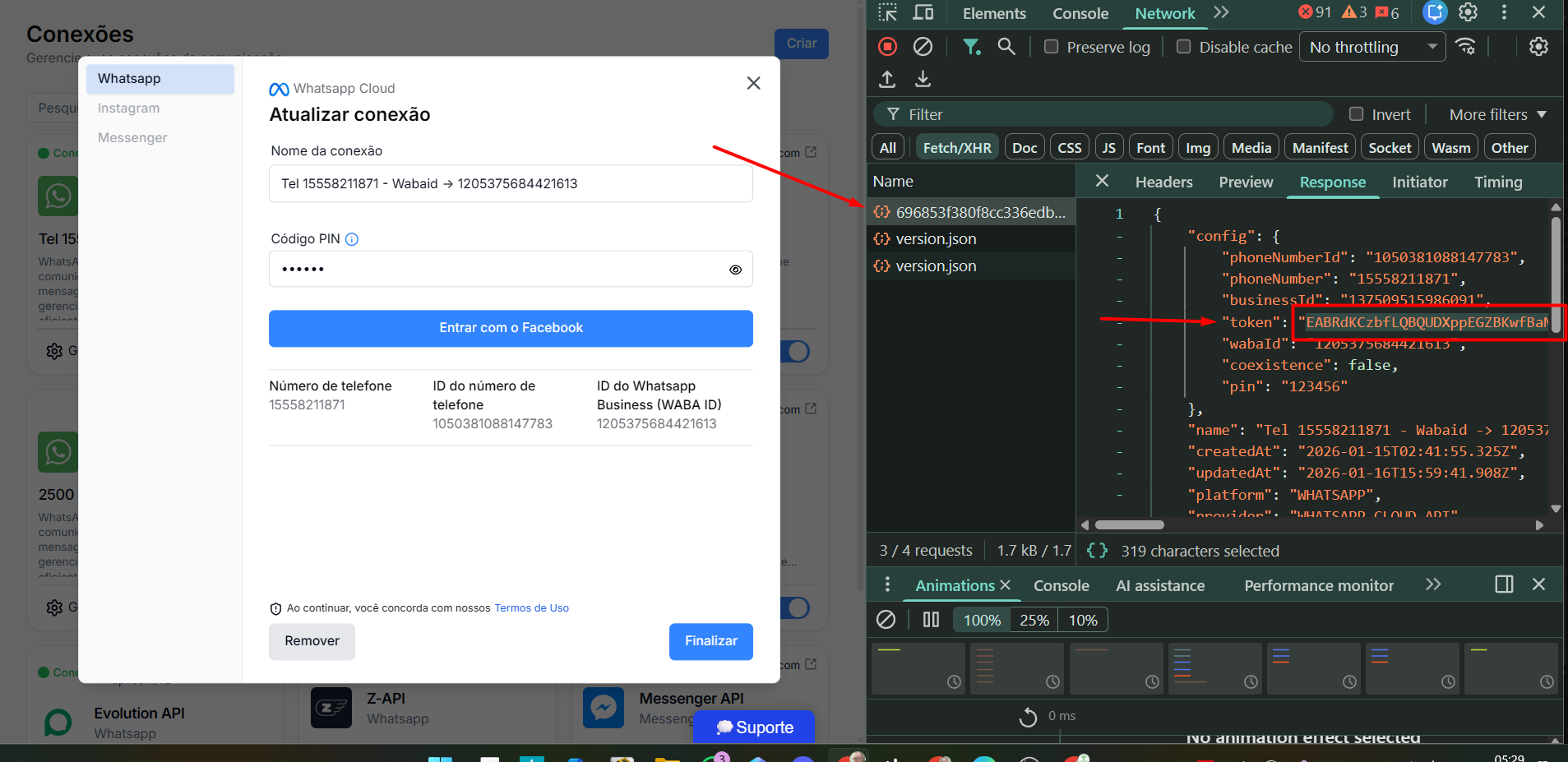
Grab the token (the token is long, much longer than what you see on the screen) by double-clicking it or copy all the content to a notepad/text editor and then copy only the token content inside the double quotes, from the beginning to the end of it. Save the token in a safe place, along with the Phone Number ID saved earlier. See Image 2B. Example of a token below:
(The token below is fictitious, just for example)
EABRdKCkjQBQUDXppEGZBKwfBaN3CeK7YypC3OIZBZCSwz70ybIJd5RaSBo3k2UJg5JcxHK1P7JvtX9IDp4DNBUI4THd1qXh7CQ7jwBNZB0auq76NIv0Lp2bkEIZAjNJSY6POZCKmtpX1vhsFDndag843wprNjJ6k5qWlFPBDXtFQIitV20nCRiFPC5KHAb9sPBoxnxmqbIcP2FhWPs7qz5ckJgf6DbqiyPKcewr10SRQtdruuOwZBSVMuiCZCk4dYkxokkzGiehoH1pMZAmqNOXEka5PcPPE2Umm76DZCfqDP5ZCTT4AMZiOiODZD
Image 2B
Now let's go to the website reqbin.com, we'll set it up and then we'll make the /register api call.
Copy this whole URL below, from https to the end of YOUR TOKEN, everything below, and paste it in the place marked 1, as shown in image 2C.
https://graph.facebook.com/v24.0/TROQUE_POR_SEU_ID_NUMERO_TELEFONE/register?access_token=TROQUE_POR_SEU_TOKEN
Payload JSON → Copy from the opening brace { to the closing brace }, and paste it in the indicated area 4, as shown in image 2C
{
"messaging_product": "whatsapp",
"pin": "123456"
}
Image 2C -
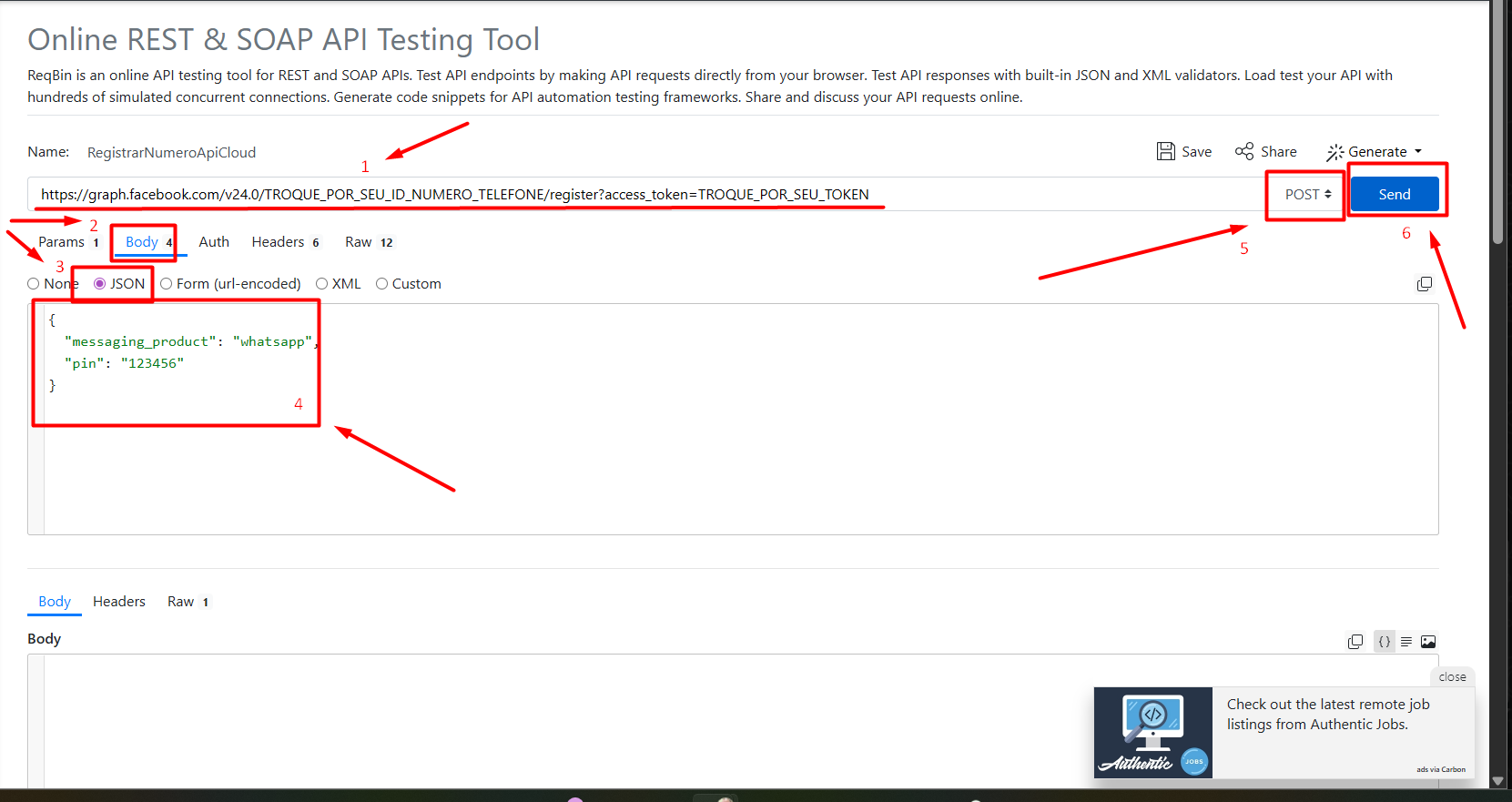
Pasting the URL in the place indicated in 1, now copy the phone number id, then after double-clicking on TROQUE_POR_SEU_ID_NUMERO_TELEFONE paste with ctrl+v(cmd+v MacOS) replacing ‘TROQUE_POR_SEU_ID_NUMERO_TELEFONE’ with your phone number id.
Also replace ‘TROQUE_POR_SEU_TOKEN’ with the token.
Following the steps from 1 to 6 shown in the image exactly, you should be successful when you click SEND.
To make it easier, here are the steps:
#1 paste URL, replace phone id and token.
#2 Tap on Body.
#3 Tap on JSON
#4 paste the Payload JSON → If your six-digit PIN isn’t the same, replace it with yours!
#5 POST method
#6 SEND - > If it works, it should show 200(OK) in green further down on the right
If there’s an error, check if:
CORRECTLY COPY THE PHONE NUMBER ID
CORRECTLY COPY THE TOKEN
(All the content inside the quotation marks, e.g. “EABRdK………EABRdK”, I showed it hiding most of it with …. to make it easier to understand, but the token is long, as shown earlier below Image 2A.
If the error says something about DEPRECATED for version 21 or higher (deprecated for 21 or higher), we need to make ANOTHER api call before this one. For that, open a new tab in the browser, being careful not to lose this current one.
In the new tab, go to the same site, REQBIN.COM
Set it up with the following data, as in image 3A
Image 3A - Route /settings
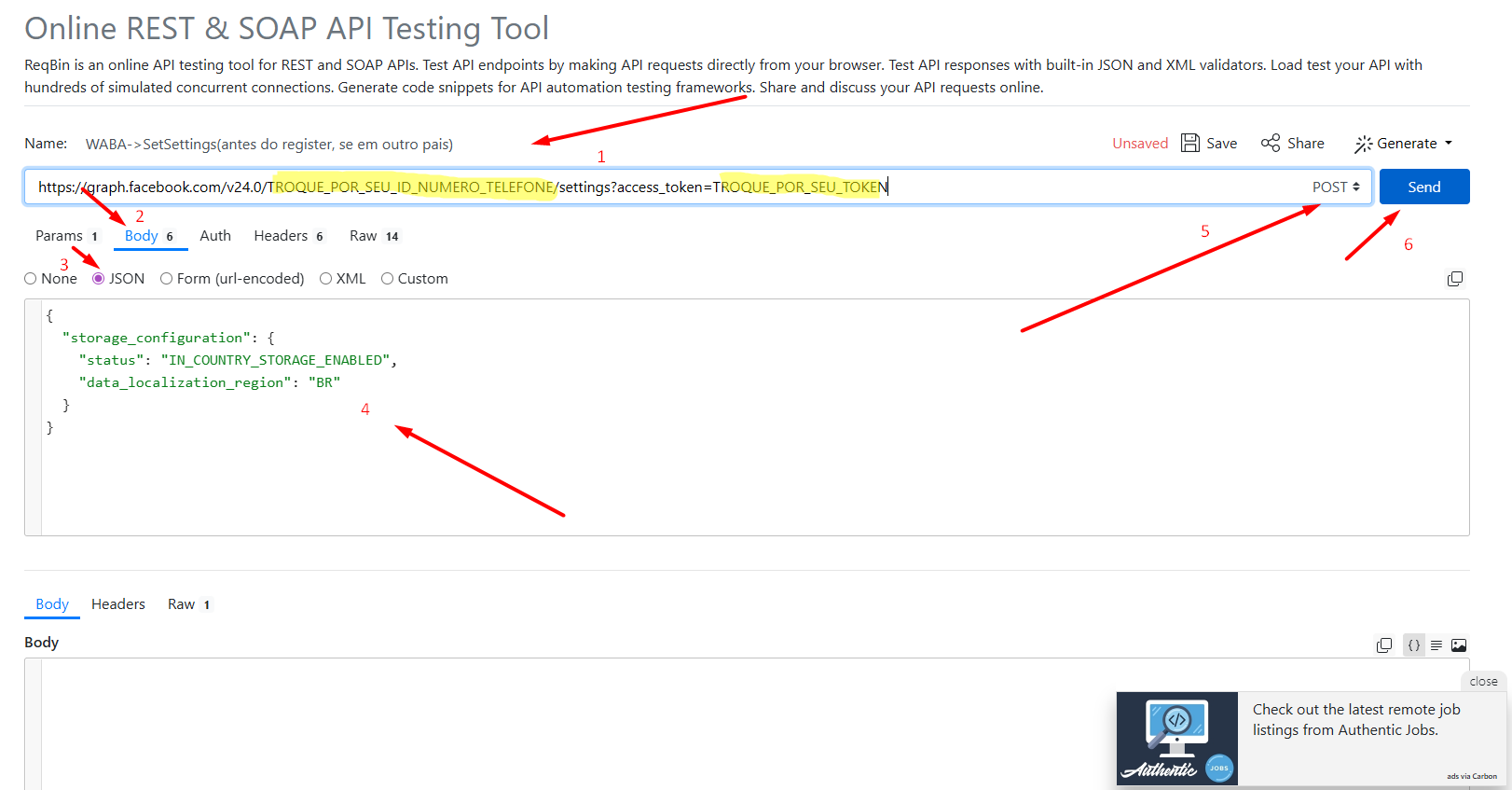
To make it easier, here are the steps:
URL for this step /settings Copy from HTTPS to the end of TROQUE_POR_SEU_TOKEN, everything is part of the URL→ https://graph.facebook.com/v24.0/TROQUE_POR_SEU_ID_NUMERO_TELEFONE/settings?access_token=TROQUE_POR_SEU_TOKEN
Payload JSON Copy everything from the first brace { to the last brace }, everything is part of the JSON payload.
{
"storage_configuration": {
"status": "IN_COUNTRY_STORAGE_ENABLED",
"data_localization_region": "BR"
}
}
#1 paste URL, replace phone id and token.
#2 Tap on Body.
#3 Tap on JSON
#4 paste the Payload JSON → For Brazilian BMs, the value of the key data_localization_region is already set to BR. Change it if your BM is in another region. For your convenience, you can find the country code in the ISO 3166 format at the end of this guide.
#5 POST method
#6 SEND -> If it works, it should show 200(OK) in green further down on the right
If you get an error, check if:
YOU CORRECTLY COPIED THE PHONE NUMBER ID
YOU CORRECTLY COPIED THE TOKEN
(All content inside the quotes, e.g. "EABRdK………EABRdK", I showed it hiding most of it with the …. to make it easier to understand, but the token is long, as shown earlier below Image 2A.
With the /register route returning success 200(OK) and /settings if needed, wait a little bit and then refresh BM and check your number, which should be REGISTERED and with a display name in operational use.
Only if an error appears (deprecated for 21 or higher/localization)
| List of Country Codes in the ISO 3166 format. (only if an error occurs as explained in the /register route)
Europe
LATAM
EMEA
NORAM
Once the feature is enabled, it can’t be disabled or changed directly. Instead, you’ll need to delete the registration for the phone number and register it again without this parameter (to disable), or include the parameter with the new country code (to change).
|
