During the integration of a WhatsApp Cloud API number into CRM Datacrazy, the WhatsApp Business Account (WABA) doesn’t appear in the list of available accounts in the embedded signup via Login with Facebook.
The WABA still doesn’t have Datacrazy assigned as a partner, which prevents it from being shown in the account selector during the integration flow.
Access the WhatsApp Account Manager → Link here
Click on settings. See image 1.
Go to WhatsApp Accounts.
If there is more than one WABA, select the correct account.
To confirm which is the right WABA:
Click on Phone Numbers.
Check which numbers are connected to this account.
With the correct WABA selected:
Next to the Phone Numbers tab, click on Partners.
Click on Add partner.
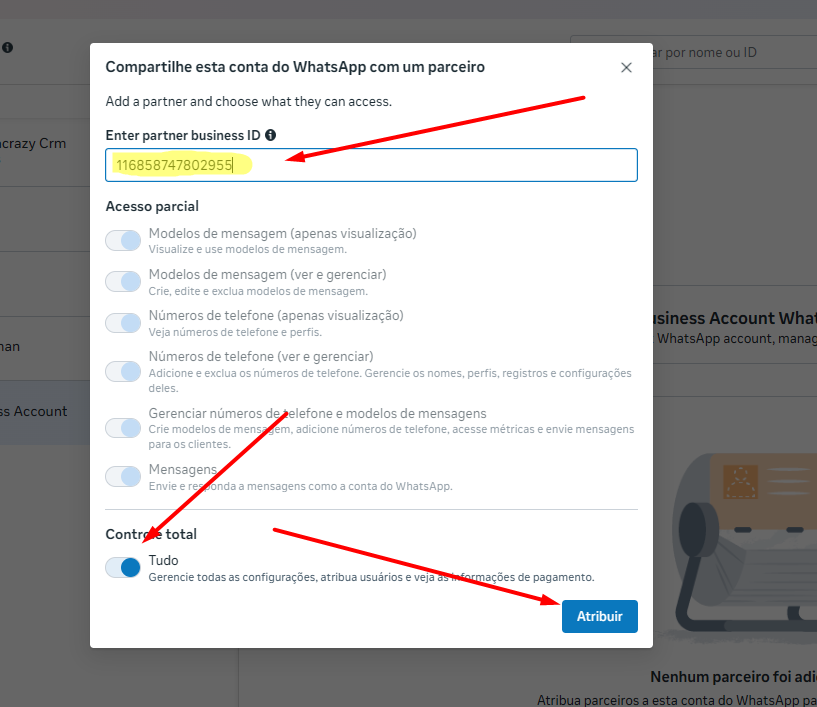
Enter the Datacrazy partner code:
116858747802955
Confirm adding the partner.
Wait approximately 2 minutes after adding the partner.
Go back to the Datacrazy CRM.
Redo the connection process via Login with Facebook.
The WABA should appear normally in the dropdown/cascade menu for selection.
Select the account and follow the standard integration flow.
During the final integration flow:
When the option to add card appears, click the button even if the account already has a card registered.
When the Meta page opens:
If the card already exists, you can close the page.
Go back to the Datacrazy CRM.
Finish the integration by clicking the Finish button (blue).
116858747802955
Image 1A - Accessing BM and going to business settings
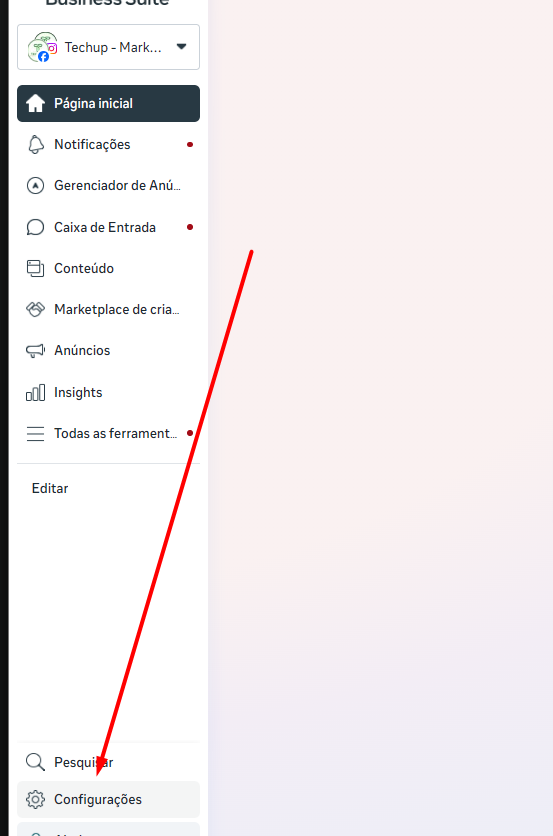
Image 1B - Go to WhatsApp accounts → select your account → see which one it is by looking at phone number, once you find the right one, go to partners, next to phone number.
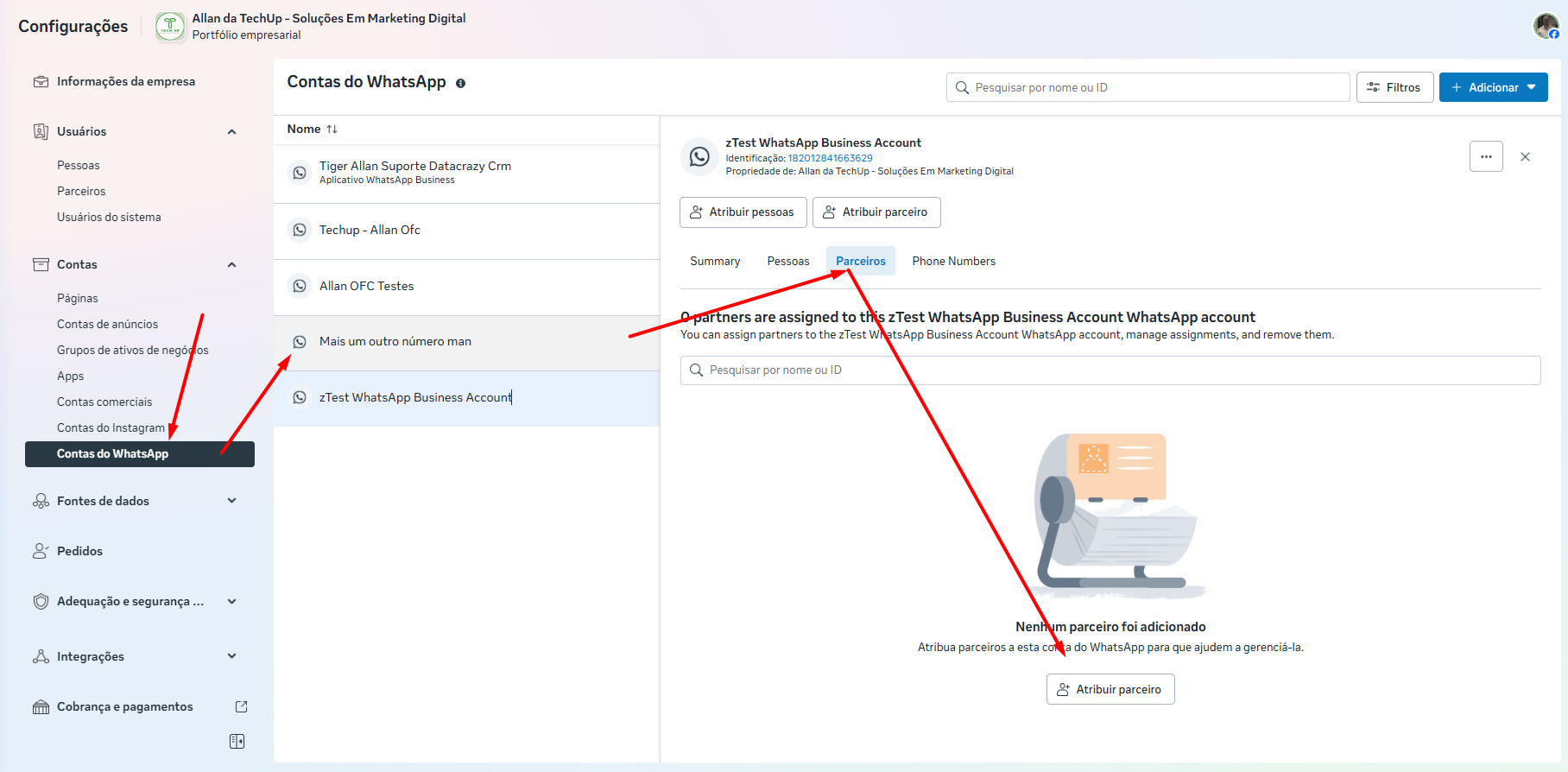
Image 1C - Paste the partner id 116858747802955, enable full control and tap assign!
All done, if you selected the correct waba, it should now show up when you do the connection process via embedded signup (via Facebook Login) to bring in the cloud api/cloud api coexistence account.
