App Creation, Token Generation And Dataset (WhatsApp + Marketing API)
Video link:
We’re not creating the App for direct functional use, but rather to:
 Generate a reliable system token
 Plug this token into Datacrazy CRM
 Track leads coming from ads (Tracking #1)
 Send purchase events to the WhatsApp Pixel (Tracking #2)
This token is the foundation of all tracking integration with Meta.
During the creation of the App, select the following main use cases:
Create and manage ads with the Marketing API
Connect with customers through WhatsApp
Manage everything from your Facebook Page
After creating the App, also add:
read_insights
Path: Manage Pages → click on ADD
whatsapp_business_manage_events
Path: Connect on WhatsApp → click on ADD
These use cases are required to unlock permissions that will be used in the token.
In the App settings menu, enter:
Privacy Policy URL
https://datacrazy.io/politica
Terms of Service URL
https://datacrazy.io/termos
User Data Deletion URL
https://datacrazy.io/politica
After filling it out:
 Click on Save Then on Publish App status: OK / Active
Access System Users
Create a user with:
Type: ADMIN
Name: Tracking
Select the user you created
Click on the three dots (…)
Choose Assign assets
Select APP
Assign the App created previously with:
 Permission: Full control
With the user Tracking selected
Click on Generate Token
Select the created App
Set the expiration: NEVER
Check the following permissions:
ads_read
whatsapp_business_management
whatsapp_business_messaging
whatsapp_business_manage_events (requires active use case)
read_insights (requires active use case)
Generate and save the token safely.
Important warning: The token is only shown once at the time it’s generated. If you close the window/modal without saving it, it can’t be viewed again.
If that happens, you’ll need to generate a new token (it doesn’t cause technical issues, it’s just extra work). So, save the token immediately in a safe place.
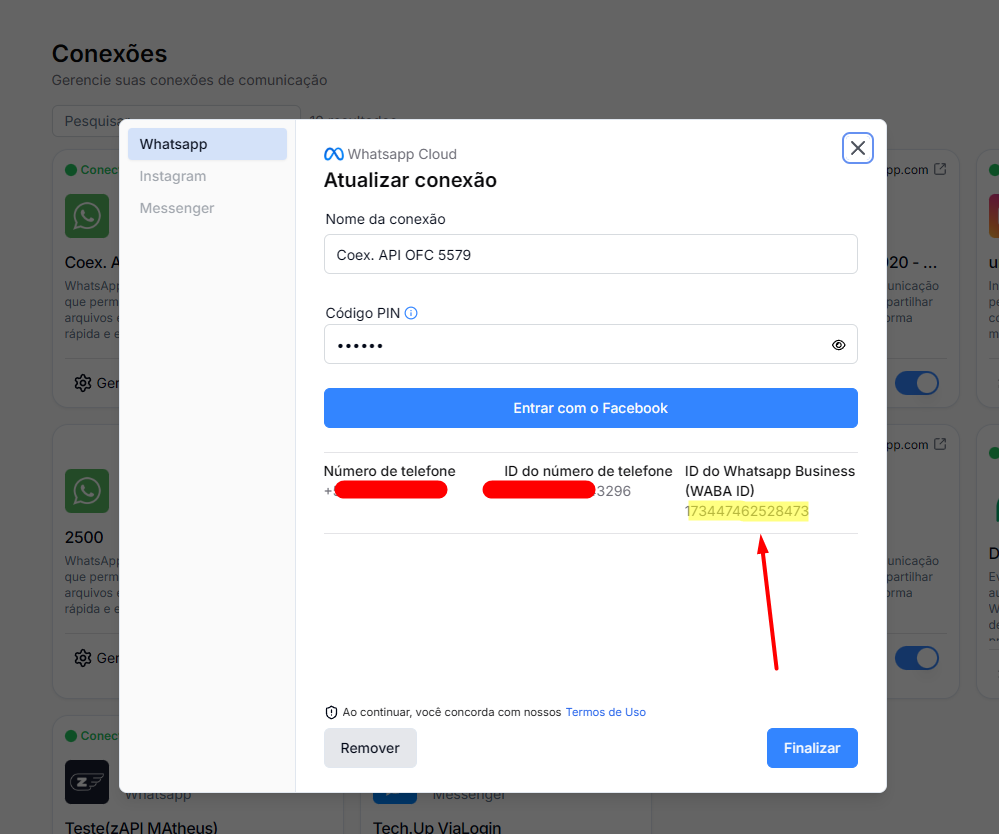
The WABA ID is the ID of your WhatsApp Business account and will be used in API calls.
Go to Connections in the Datacrazy CRM
Click on your WhatsApp connection
Go to Manage / Update connection
Find the field WhatsApp Business ID (WABA ID)
 Image #1 – WABA ID location
The image below highlights exactly where the WABA ID can be found on the connection setup screen.
This is the value that must be used in the API calls in the next steps.
Image #1
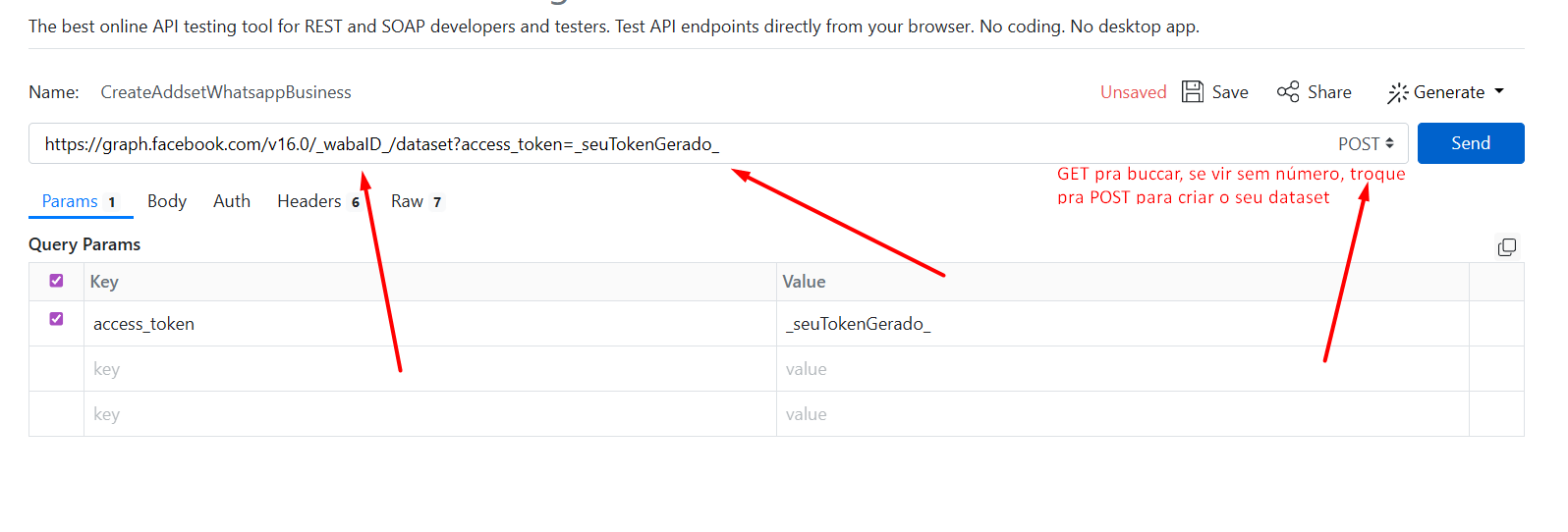
For this step, we’ll use ReqBin to test the API:
https://graph.facebook.com/v16.0/_WABA_ID_/dataset?access_token=_SEU_TOKEN_
 Replace:
_WABA_ID_ with the WABA ID of your account
_SEU_TOKEN_ with the token generated in the previous step
Method: GET
URL: endpoint above
If it returns data → dataset already exists
If it returns empty → you'll need to create it
If the GET doesn’t return any dataset:
Method: POST
URL: same endpoint
Headers:
Content-Type: application/json
The request body can vary depending on the API. If it’s required, follow the pattern shown in the video/tutorial.
Status 200 or 201 → Dataset created successfully
Image #2
After finishing all the steps:
App created and published System user configured Token generated with correct permissions Dataset created or validated
Always follow the order of the steps
Permissions only show up in the token if the use case is active
Use the support video to validate specific payload details
 Follow the steps in the video as indicated.
 Flows used:
Responsible for receiving leads and saving the ad information that originated the click.
This flow uses the token generated by the App to:
Identify the lead source (campaign, ad set, ad)
Associate the lead with the correct ad
Persist this data in the Datacrazy CRM
Flow link #1:
https://drive.google.com/file/d/1-ZomxV6V44HQly1Rmk4CHM1_aoVGoOSl/view?usp=drive_link,
Responsible for sending purchase (won) events to the WhatsApp Business Pixel.
This flow allows you to:
Report conversions to Meta
Improve ad optimization and learning
Close the tracking loop between ad → lead → purchase
Flow link #2:
https://drive.google.com/file/d/1GxH3Cbzrh7mhkiXY_CTNZCoEN4bejsSS/view?usp=drive_link