
A Datacrazy CRM update has been released that works around the problem caused by META.
Check out the video tutorial below too!
Now, when you get a message that previously wouldn’t enter the flow, you’ll receive in the chat a message letting you know that an unsupported message was sent by Meta. See image #1
Image #1 - Notice in MultiAtendimento (live chat) about unavailable message.
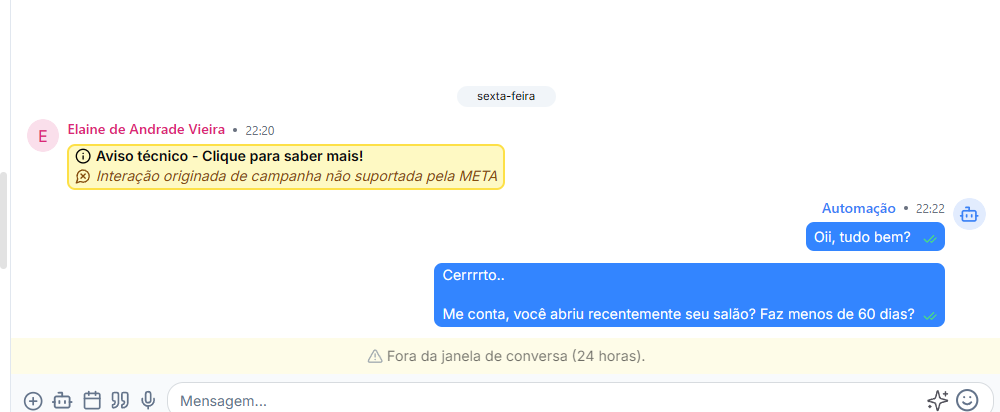
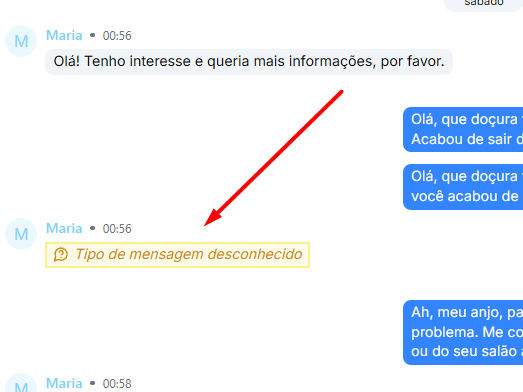
Image #2 - Notice in MultiAtendimento (live chat) about unsupported message
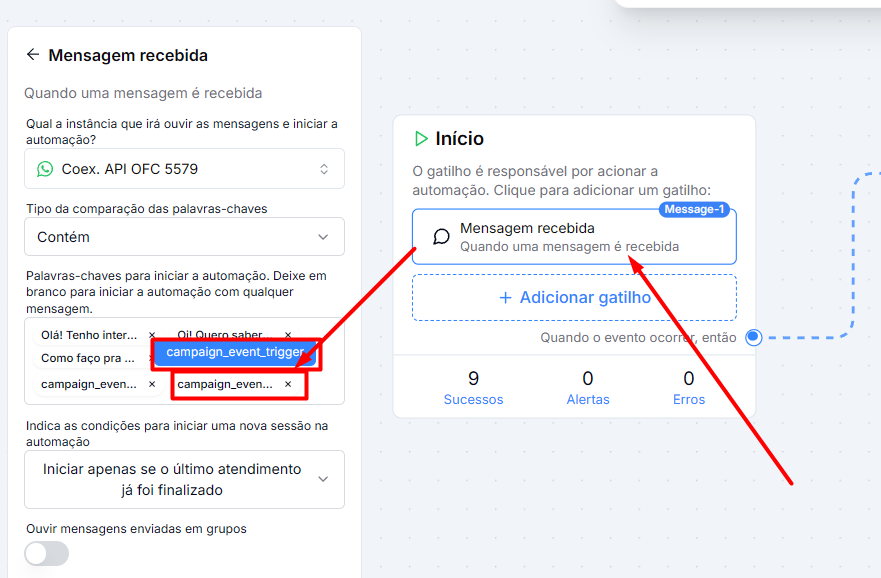
By clicking the yellow text message, as shown in Image #3 this modal will open explaining what it is and how we can fix it. To fix it, just copy campaign_event_trigger and paste it into the received message trigger block of your flow that isn’t starting. See image #4.
Image #3
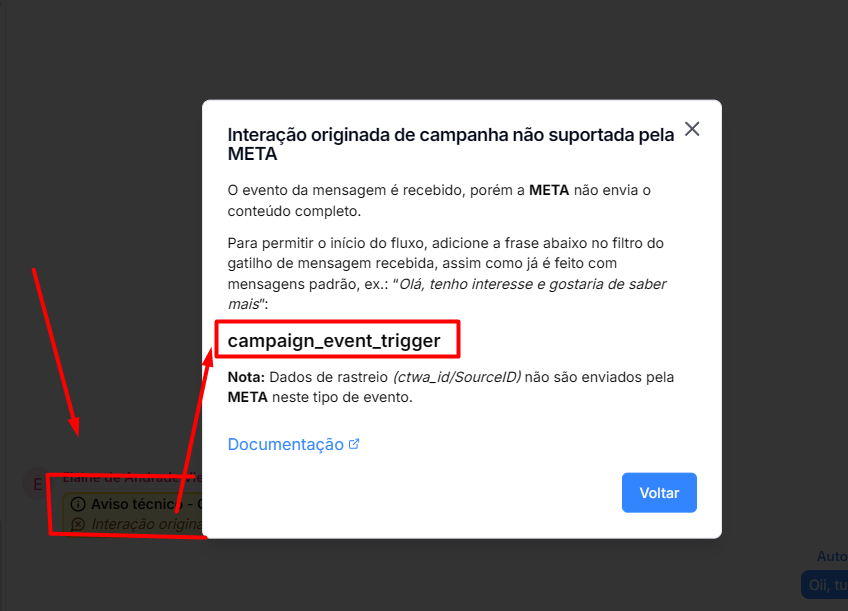
Image #4 - Pasting the phrase ‘campaign_event_trigger’ in the keyword filter of the funnel flow.
To make sure the flow runs correctly and doesn’t start twice, remove the second trigger of MESSAGE SENT from your flow - See Image #5.
Image #5
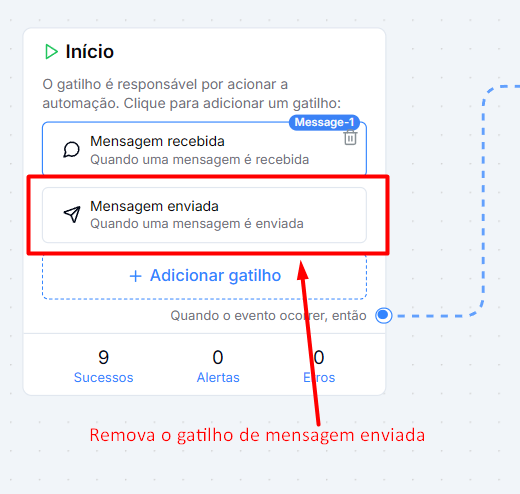
Now with everything set up, your flow should start normally.
Tracking and Conversion (purchase send) on META
Since META doesn’t send us the CTWA_ID and SourceID data in this unsupported message, or better, the LEAD clicking on the ad doesn’t send these data to Meta because they’re using some app or browser that for some reason doesn’t have support, and the send fails. So we don’t miss notifying, Meta sends us this webhook with ‘message is not available’. Now we handle this to start the flow BUT the lead doesn’t send the ad data when they click on the ad.
Without CTWA_ID, it’s not possible to send conversion to Meta using the WhatsApp dataset (pixel). We can get around this by sending conversion to a traditional Meta PIXEL. For this to work, your campaigns need to be set up to use a TRADITIONAL PIXEL (not the WhatsApp one), and the body of the message sent in the API call changes a bit.
Sensitive data must be hashed, no exceptions. In the flow, our <>JavaScript block does this for you, so you don’t need to do anything.
Here’s the Flow link to download it → https://drive.google.com/file/d/1Jh5gQPwQ_Mo4NOdiKB6JhobeMCUhEHKa/view?usp=sharing
Video Tutorial