In the WhatsApp Cloud API (Standard connection), error 131070 when sending messages and messages not reaching the CRM usually have the same cause: the WhatsApp account’s Conversation Routing still directs conversations to another app or partner. The solution is to route everything through DataCrazy and only then remove the old partner.
This article is for you if at least one of these situations applies:
When you send a message through the CRM, a red circle appears in the conversation, and hovering over it shows error 131070.
A contact sends a message to the connected number. It shows two delivery check marks, but the message does not reach the CRM, even after reconnecting.
This procedure applies only to the official Standard connection of the WhatsApp Cloud API. With the Coexistence connection, the Conversation Routing option does not exist, so this issue does not occur for this reason.
Connection type | Conversation routes | Procedure applies |
|---|---|---|
Standard (official) | Available | Yes |
Coexistence | Unavailable | No |
In WhatsApp Manager, go to Settings > WhatsApp Accounts, select the phone number account, and open the Conversation Forwarding tab (Conversation Routes). On smaller screens, the tab may be under the More menu.
If the screen only shows the Assign a partner option, there is no routing to another partner, and this does not apply to you.
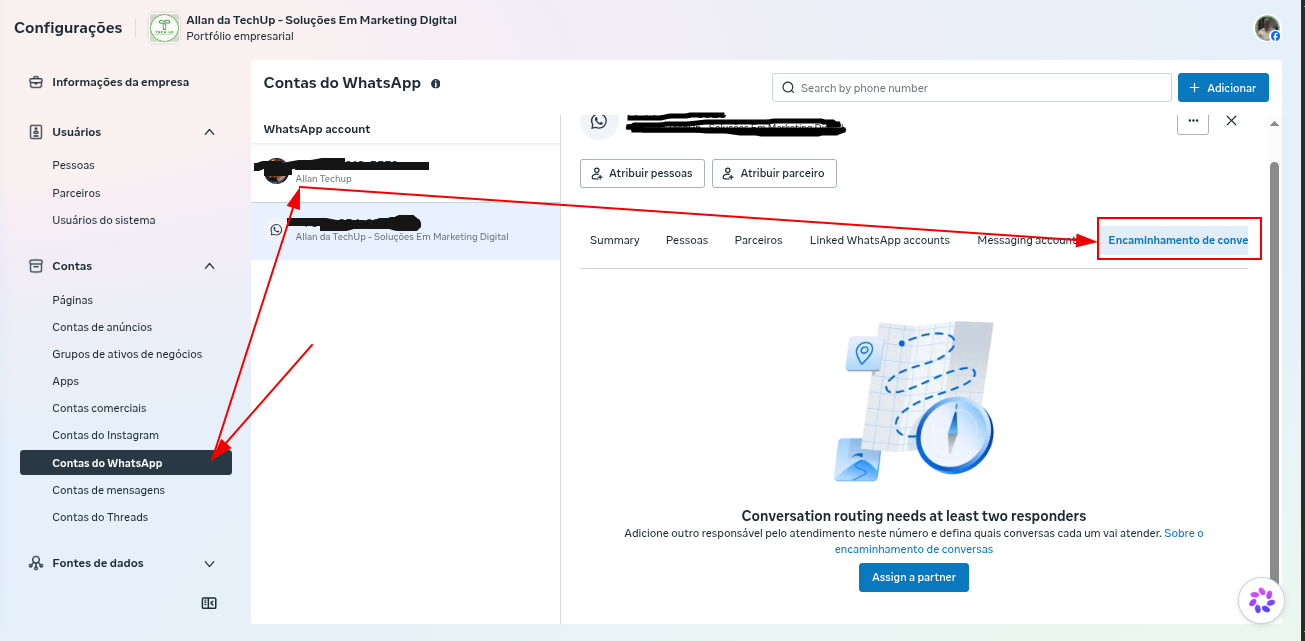
Image 1 - Screen where conversation forwarding is added or removed. To fix this, click Manage and switch the partner to DataCrazy in all lists.
With the Standard WhatsApp Cloud API connection, the number may be correctly connected to DataCrazy, and yet incoming messages may not reach the CRM. This happens when the Conversation Routes still direct conversations to another app or partner.
Unexpected behavior: the routing configuration may remain saved even after the number is removed and added back to the BM. If there was another partner in the routes, they will continue receiving conversations instead of DataCrazy.
Common indication: when trying to remove the old partner, a warning appears stating that they are being used in Conversation Routes.
Path: WhatsApp Account > Conversation Routes (Conversation Forwarding).
Confirm that the connection is of the Standard type (the option is not available in Coexistence).
Click Manage.
Identify the routes assigned to the old app or partner.
Change the owner to DataCrazy in all routing lists.
Save the changes.
Send a message to the connection from another number and confirm that it reaches the CRM.
After validating, go to WhatsApp Account > Partners, click Manage, and remove the old partner if it is no longer linked to the account.
Wait about 2 minutes and test in both directions: from the contact to the connection and from the connection to the contact.
No. First, transfer all routes to DataCrazy. While the old partner is linked to the conversation routes, its removal may be blocked or incorrect routing may continue.
Attention: if the old partner is still in use, it will stop receiving messages through this routing. In this case, after the correction, you can create a new messaging account with the same number shared with the partner or adjust the routing using rules. These procedures are not covered in this article.
Once DataCrazy takes over all routes, new messages will arrive as usual from the contact to the CRM and from the CRM to the contact.
No. In Coexistence, there is no Conversation Routes option, so this procedure does not apply.
Wait about 2 minutes and test by sending and receiving a message through the connection.
Not necessarily. Conversation Routes may remain saved even after removing and adding the number again in BM. The routes need to be corrected.